You find a great YouTube tutorial. Twenty minutes, packed with useful stuff. You paste the link into Claude and ask it to turn the lesson into steps you can follow.
What comes back sounds confident. But it’s built from the title, or from the transcript at best. And the transcript misses the most useful part of most tutorials: the template on the slide, the prompt typed into the box, the setting being clicked. The things the creator shows but never says out loud.
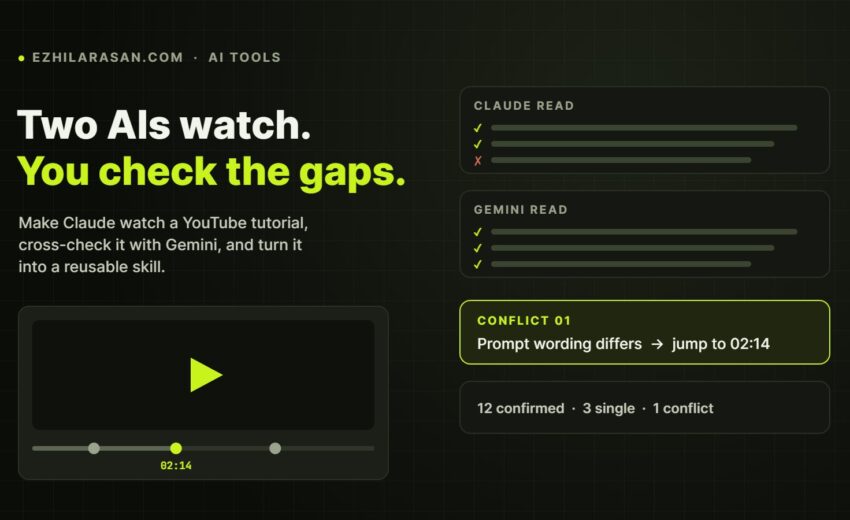
A guide shared by creator @vibha.in.progress lays out a neat fix for this. It uses a free, open-source skill called /watch so Claude can actually look at the video, a second AI (Google’s Gemini) to watch the same video independently, and a simple comparison step so you only check the parts where the two disagree. Then you turn the verified result into a reusable Claude skill.
Below is the full picture: what the guide recommends, what the /watch repository confirms, what’s optional, and where the limits are.
Quick note: /watch is made by an independent developer, Bradley Bonanno, and shared under the MIT license. It isn’t an Anthropic feature. And it runs in Claude Code, not in regular Claude chat.
Why Claude can’t “watch” YouTube by default
Claude can read web pages, run scripts and browse code. A video is different. Without a tool, it can only work with text: the page title, the description, or a transcript if one is available.
That’s fine for a podcast. It’s a real problem for tutorials, because so much of the value is visual:
- the exact prompt pasted into a tool
- the settings screen being changed
- code or a template shown on screen
- the order things are clicked in
Lose those and you get a summary that’s roughly right and practically useless. That gap is what this setup closes.
What is the /watch skill?
/watch is a Claude Code skill (installed as a plugin) that turns a video into evidence Claude can read. Give it a YouTube link or a local file and it:
- downloads the video with
yt-dlp - pulls frames with
ffmpeg, with timestamps - grabs the captions, or transcribes the audio if there are none
- hands all of that to Claude
Since version 0.3 (September 2026), it can also send the video to Google’s Gemini model instead. Gemini can take a public YouTube link directly and answer questions about it, with timestamps.
So you get two ways to “watch”:
| Engine | What it does | When to use it |
|---|---|---|
local |
Claude reads frames and transcript on your machine | Private or local videos, or when you want Claude’s own read |
gemini |
Gemini watches the video and Claude relays its answer | Quick, full-picture reads of public YouTube videos |
By default (auto), /watch uses Gemini whenever it finds a Gemini key, and the local engine otherwise. It never switches engines silently if one fails.
The two-eyes method, explained simply
The clever part of the guide isn’t the tool. It’s the process.
- Eye 1: Claude watches the video with the local engine and writes a structured extract.
- Eye 2: Gemini watches the same video with the exact same instructions.
- Compare the two, claim by claim. Each claim gets a label: confirmed (both agree), single (only one saw it) or conflict (they disagree).
- You check only the conflicts, using timestamp links that jump straight to the moment in the video.
- Turn the verified result into a skill with Anthropic’s skill-creator.
Why bother with two? Because one model’s read is a guess you’d have to check end to end. Two independent reads that agree are much more likely to be right, and the places they disagree tell you exactly where to look. You stop fact-checking the whole video and start checking four or five moments.
What you need
- Claude Code on your computer. The Code tab in the Claude desktop app works, as do VS Code and the terminal.
- The
/watchskill (free, open source). - A free Gemini API key from Google AI Studio, if you want the second read.
- Python 3.10+, FFmpeg and the latest yt-dlp for the local engine. On a Mac, Homebrew handles these.
Step-by-step setup
Step 1: Install /watch in Claude Code
Inside a Claude Code session, run these one at a time:
/plugin marketplace add bradautomates/claude-video
/plugin install watch@claude-video
In the desktop app instead: Customize → Plugins → Add → Add marketplace → Add from a repository, paste https://github.com/bradautomates/claude-video, sync, then find Watch and install it. Adding the marketplace alone doesn’t install anything, so don’t skip that last part.
Start a new session if /watch doesn’t show up straight away.
The common mistake: cloning the GitHub repo is not the same as installing it. Cloning just downloads files. Use the plugin commands above.
Step 2: Install the helper tools
The local engine needs FFmpeg and yt-dlp. On a Mac:
brew install python ffmpeg yt-dlp/watch can also check what’s missing for you. Ask Claude to run the watch skill’s setup and tell you what to install. It supports the latest yt-dlp only, so keep it updated.
Step 3: Add your Gemini key (safely)
Get a free key at aistudio.google.com/apikey (Create API key). Then ask Claude to open ~/.config/watch/.env in your text editor, and paste the key after GEMINI_API_KEY= yourself.
Keep the key out of the chat, screenshots and any shared files. /watch reads it from that file and sends it only as a request header. If a key ever leaks, delete it in AI Studio and create a new one.
Step 4: Get Claude’s own read (Eye 1)
Run /watch on your video with three settings that matter:
--engine localkeeps this read Claude’s own. Without it,/watchwould send the video to Gemini too, and you’d be comparing Gemini with Gemini.--resolution 1024makes on-screen text readable. The default frame width is 512px, which turns small text into a blur.--detail token-burnerkeeps every scene-change frame. Use it for longer videos; it uses a lot more tokens, so skip it for short clips.
Give it a clear brief. For example:
/watch <YouTube URL> --engine local --resolution 1024 --detail token-burner

Write everything needed to reproduce this tutorial to claude-read.md:
what it is, prerequisites, numbered steps with MM:SS timestamps,
every prompt or template shown on screen copied exactly,
warnings, and anything you couldn't see clearly.
Don't fill gaps with guesses.
The most important instruction is the last one. Anything not said or clearly visible should be listed as unclear, not filled in.
Step 5: Get Gemini’s read (Eye 2)
Save the exact same brief to a file, then run /watch on the same link with --engine gemini and that brief as the question. Save the answer to gemini-read.md. Ask Claude not to open the first read while doing this, so the two stay independent.
The guide also includes an optional backup script that calls Gemini directly and tries several model names in turn. Since /watch 0.3 has Gemini built in, most people won’t need it.
Step 6: Compare and resolve
Ask Claude to compare the two files claim by claim and label each one:
- Confirmed: both reads agree
- Single: only one read has it (and which one)
- Conflict: they disagree, with both versions shown side by side
Ask for a short list of the conflicts at the end, each with a YouTube link that jumps to that moment (&t= plus the time in seconds). Then watch just those moments, tell Claude the correct version, and have it update the file.
Two rules make this trustworthy: never let Claude average out a conflict, and treat a single changed word in a template or prompt as a conflict, not a match.
Step 7: Turn it into a skill
Use Anthropic’s skill-creator skill (in the Claude apps under Customize → Skills; for Claude Code it’s in the anthropics/skills repository) to build a skill from the verified file. Tell it to:
- use confirmed and resolved details exactly as written
- mark single-source details as unverified
- add nothing that isn’t in the file
- include the source video link
Then test the new skill on a real example and ask which part of the file each step came from. That last check tells you whether you built something real or a nicely formatted guess.
Where this is useful for marketers and creators
- Turn a long ads or analytics tutorial into a checklist your team actually follows.
- Capture a creator’s editing or content workflow (with credit) as a repeatable process.
- Build internal SOPs from product demo videos instead of rewatching them.
- Learn new tools faster by getting the exact prompts and settings shown on screen.
When a one-off becomes a workflow
Notice the pattern here. Watching one video is a task. Doing watch → cross-check → resolve → skill every time you find a good tutorial is a workflow, and workflows are where most of the time savings in AI actually come from. The same thinking applies to everyday business work: enquiries, follow-ups, moving information between tools. If you’d like to find where that kind of repeatable process could save your team hours, that’s what AI automation for marketing and lead handling is about, applied only where it genuinely helps.
Limitations and things to know
It only works in Claude Code. The /watch README says it doesn’t work in regular Claude chat or Cowork. You need Claude Code running on your own computer.
Gemini has limits. YouTube support in the Gemini API is a preview feature. On the free tier you can process up to 8 hours of YouTube video a day, and only public videos (not private or unlisted). Google says pricing and limits may change.
Long videos get thinner. /watch is most accurate under about 10 minutes. For longer videos, work through them in sections with --start and --end.
Detail costs tokens. token-burner can pull hundreds of frames. Use it when you need it, not by default.
Both AIs can be wrong. The comparison shows you where to look. It doesn’t replace you. When you’ve watched a moment yourself, your answer wins.
Respect the creator. Learn from tutorials you’re allowed to use, credit the source, and don’t repackage someone’s paid course as your own skill.
Model names change. /watch currently defaults to a Gemini model it can update through a setting. If you write your own Gemini calls, expect older model names to be retired.
The bottom line
The real idea in this guide isn’t “AI can watch videos now”. It’s that you don’t have to trust one AI’s read, and you don’t have to check everything yourself either. Let two independent reads do the heavy lifting, and spend your attention only where they disagree.
If you’re already building Claude skills, this is a practical way to feed them better material. And if you’re new to skills, start with something smaller, like these 13 free Claude skills for Instagram, then try /watch on a short tutorial you already know well, so you can judge the result yourself.
Sources: Method from a setup guide by creator @vibha.in.progress. /watch by Bradley Bonanno: bradautomates/claude-video on GitHub (MIT, v0.3.2). Gemini YouTube limits: Google AI for Developers, video understanding.

November 6, 2026